Benutzerhandbuch
Dieses Handbuch erklärt, wie der A920 im täglichen Betrieb verwendet wird. Es behandelt die häufigsten Aktionen, die direkt auf dem Terminal ausgeführt werden, einschliesslich Zahlungen, Trinkgelder, Belege, Refunds, Reversals, Submission und täglichem Abschluss.
Schnelllinks
Eine Zahlung starten

Um eine Zahlung zu starten, wählen Sie die Zahlungsfunktion auf dem Startbildschirm des Terminals aus.
Geben Sie den Transaktionsbetrag ein und bestätigen Sie ihn auf dem Gerät.
Trinkgelder
Wenn Trinkgeld aktiviert ist, kann der Kunde aufgefordert werden, vor dem Abschliessen der Zahlung ein Trinkgeld hinzuzufügen.
Je nach Einrichtung kann das Terminal Folgendes anbieten:
- manuelle Trinkgeldeingabe
- vordefinierte Prozentoptionen, die zusammen mit manueller Eingabe und der Option ohne Trinkgeld angezeigt werden
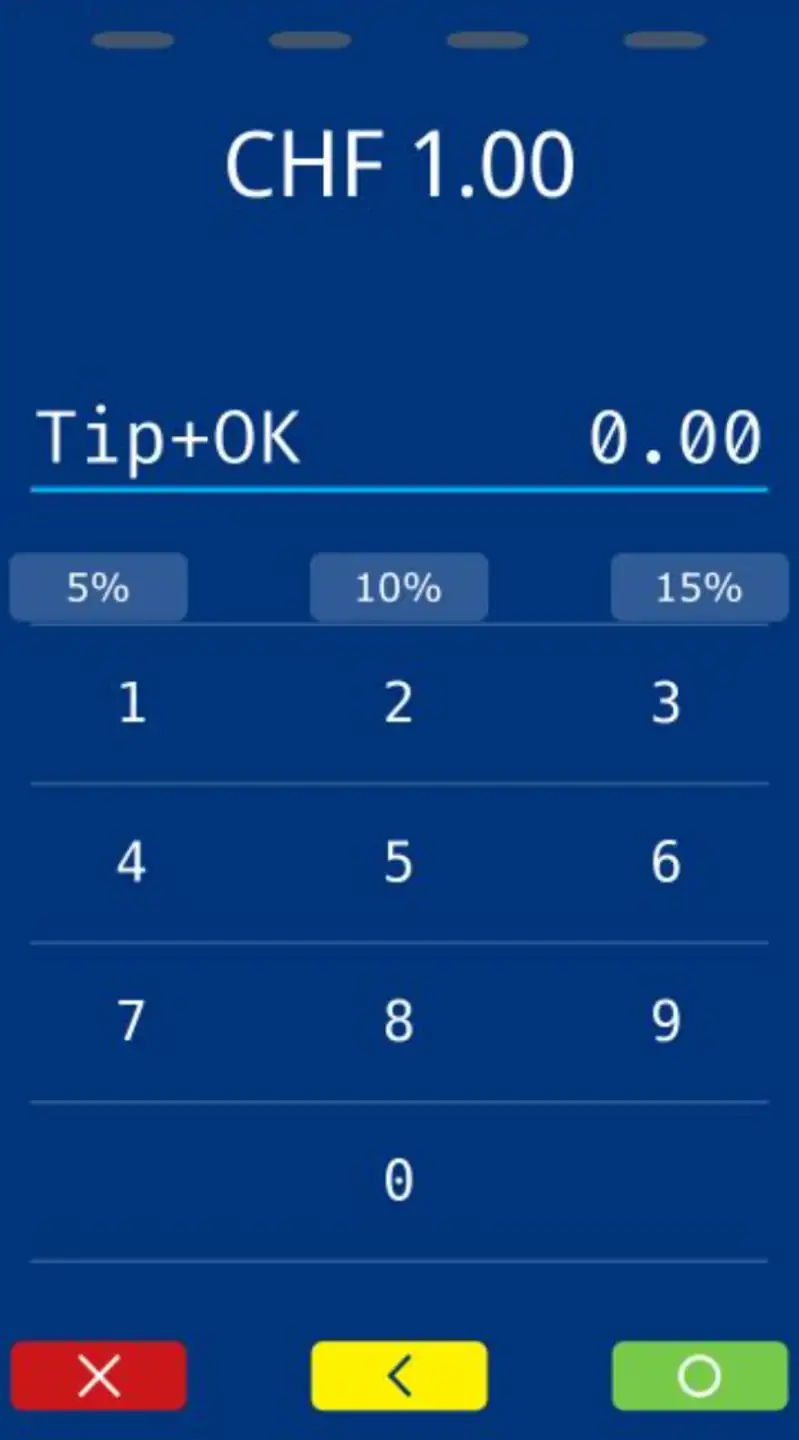
Der Trinkgeldablauf wird nur angezeigt, wenn er für den Händler aktiviert wurde.
Eine Zahlung abschliessen
Sobald der Betrag bestätigt wurde, fordert das Terminal den Kunden auf, die Zahlung abzuschliessen.

Je nach aktivierten Zahlungsmethoden kann der Kunde Folgendes tun:
- eine Contactless Karte oder Wallet antippen
- eine Chipkarte einstecken
- eine Magstripe Karte durchziehen
- eine QR-basierte Zahlungsmethode verwenden
Karten- und Wallet-Akzeptanz
Der A920 unterstützt die in der Schweiz üblichen Standard-Zahlungsmethoden für Kartenpräsenz.
Dies kann Folgendes umfassen:
- Contactless Karten
- Chipkarten
- Magstripe-Fallback, wo zutreffend
- mobile Wallets wie Apple Pay oder Google Pay
QR-basierte Zahlungen
Wenn QR-basierte Zahlungsmethoden aktiviert sind, kann auf dem Zahlungsbildschirm auch ein QR-Code angezeigt werden.
Standardmässig wird die standardmässige QR-basierte Zahlungsmethode angezeigt. Wenn alternative QR-basierte Zahlungsmethoden auf dem Terminal aktiv sind, kann der Händler die angezeigte Methode direkt auf dem Zahlungsbildschirm ändern.
Um von der standardmässigen QR-Methode zu einer alternativen Methode zu wechseln, drücken Sie auf dem Zahlungsbildschirm die grüne Taste mit den drei Punkten.
Manuelle Karteneingabe
Die manuelle Karteneingabe kann in bestimmten Konfigurationen verfügbar sein. Sie ist nicht der normale Fallback für Standard-Kartenzahlungen.
Für die reguläre Kartenakzeptanz ist die erwartete Reihenfolge:
- Contactless
- Chip and PIN
- Magstripe-Fallback, wo zutreffend
Wenn die manuelle Eingabe aktiviert ist, wird sie nach dem Start der Transaktion auf dem Zahlungsbildschirm verfügbar. Der Händler kann sie öffnen, indem er auf dem Zahlungsbildschirm auf das gelbe Symbol drückt und die manuelle PAN-Schlüsseleingabe auswählt.
Das Terminal kann dann nach Folgendem fragen:
- Kartennummer
- Ablaufdatum
- Kartenprüfnummer
Diese Funktion ist normalerweise eingeschränkt und vor allem für spezielle Anwendungsfälle wie Gift Card- oder MPKE-bezogene Abläufe relevant. Sie ist möglicherweise nicht auf allen Terminals verfügbar.
Dynamic Currency Conversion (DCC)
Wenn DCC aktiviert ist und der Kunde eine berechtigte ausländische Karte verwendet, kann das Terminal während des Zahlungsablaufs eine Währungswahl anbieten.
Dem Kunden wird Folgendes angezeigt:
- der Betrag in der lokalen Währung
- der umgerechnete Betrag in der Kartenwährung
- der Wechselkurs und zusätzliche Informationen
Der Kunde kann dann wählen, ob er in der lokalen oder in der Kartenwährung bezahlen möchte.
Genehmigung oder Ablehnung
Sobald der Kunde die Zahlung abschliesst, sendet das Terminal die Autorisierungsanfrage über das Zahlungsnetzwerk.
Die Transaktion wird dann genehmigt oder abgelehnt.
- Bei Genehmigung wird die Transaktion für spätere Submission und Settlement gespeichert
- Bei Ablehnung wird der Kunde informiert und die Zahlung kann erneut versucht werden
Belege
Nach einer erfolgreichen Zahlung stellt das Terminal den Belegablauf bereit.
Die folgenden Belege können gedruckt oder angezeigt werden:
- Händlerbeleg
- Kundenbeleg
Wenn keine Kundenbeleg-Option ausgewählt ist, druckt das Terminal den Kundenbeleg standardmässig automatisch.
Beide Belege enthalten die wichtigsten Transaktionsdetails, wie Datum und Uhrzeit, maskierte Kartennummer, Transaktionsreferenz, Autorisierungscode und Gesamtbetrag.
Der Händlerbeleg enthält in der Regel mehr operative Informationen für Support und Abstimmung. Der Kundenbeleg ist die kürzere Karteninhaber-Kopie.
Menü und erweiterte Aktionen
Der A920 bietet zwei Menüzugänge für den täglichen Betrieb und erweiterte Aktionen.

Transaktionsmenü
Das Transaktionsmenü wird über das Sternsymbol unten links auf dem Terminalbildschirm geöffnet.
Dieses Menü bietet schnellen Zugriff auf häufige transaktionsbezogene Aktionen wie Reversal, Kredit, Prepaid, Endsaldo, Ticket-Neudruck, Berichte, Druckinfo und Papier bestellen.
Händlermenü
Das vollständige Händlermenü wird über das Hamburger-Symbol unten rechts auf dem Terminalbildschirm geöffnet.
Dieses Menü bietet Zugriff auf Händlerfunktionen, Einrichtungsoptionen und operative Aktionen.

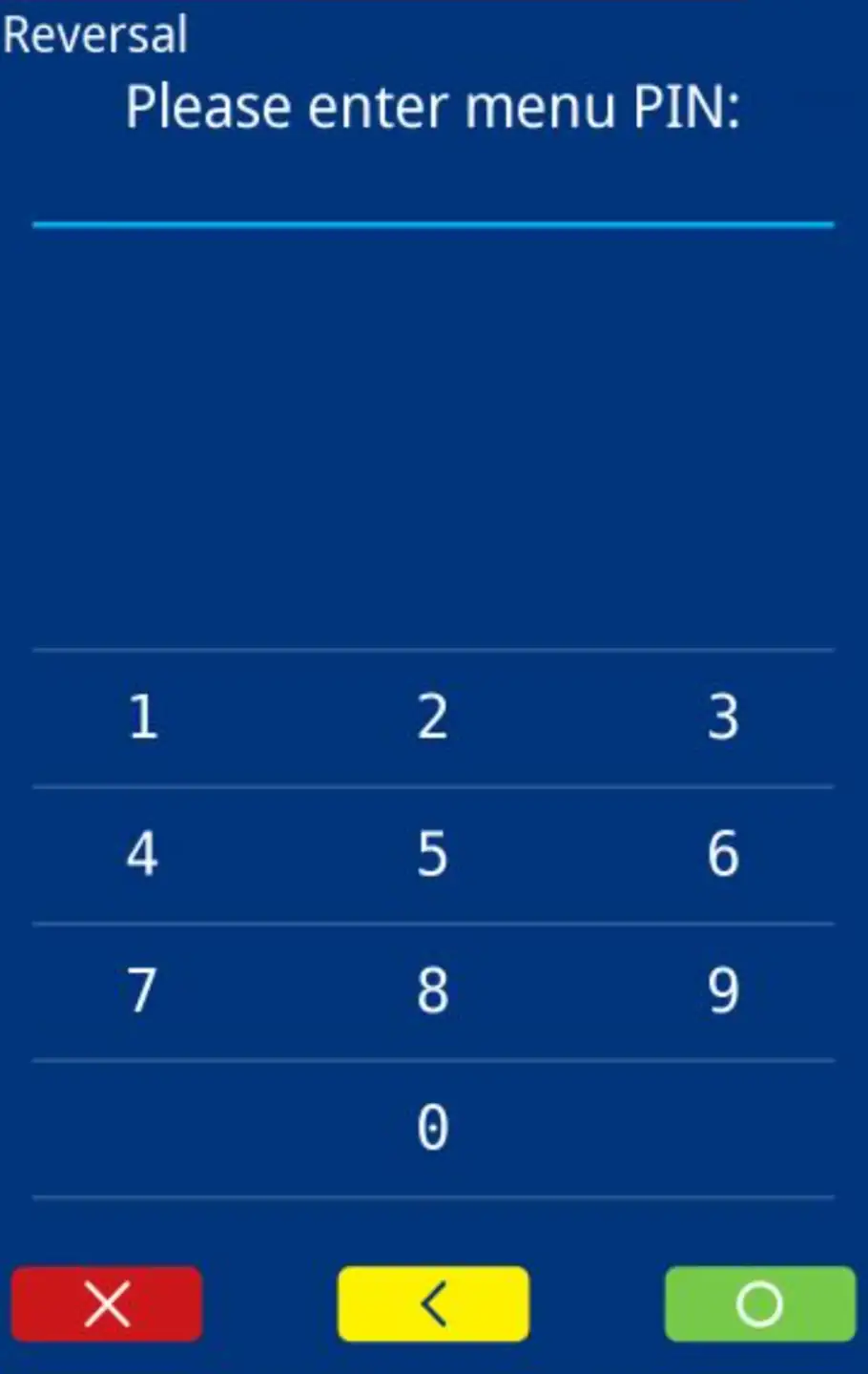
Für einige Abläufe ist ein Händlerpasswort erforderlich, bevor sie ausgeführt werden können. Wenn Sie das Passwort nicht kennen, wenden Sie sich an die für Terminals in Ihrem Unternehmen verantwortliche Person.
Auf Terminal- und Betriebseinstellungen kann über das Händler- oder Einrichtungsmenü zugegriffen werden. Bitte gehen Sie vorsichtig vor.
Aktionen nach der Zahlung
Zusätzlich zu Zahlungen unterstützt der A920 mehrere Aktionen nach einer Transaktion.
Reservation
Wenn reservationsbasierte Zahlungen für den Händler aktiviert sind, öffnen Sie die Reservation-Funktion im Transaktionsmenü, um einen Betrag auf der Karte des Karteninhabers zu reservieren. Die genaue Menübezeichnung kann von der Terminalsprache und Konfiguration abhängen.
Der reservierte Betrag kann später mit einer Anpassung erhöht, storniert oder mit einer Sale Reservation abgeschlossen werden. Zu Gültigkeitszeiträumen, Anpassungen und dem endgültigen Capture-Verhalten siehe Reservation.
Refund
Um einen Refund durchzuführen:
- Öffnen Sie die Refund- oder Kreditfunktion
- Authentifizieren Sie sich, falls erforderlich
- Geben Sie den Refund-Betrag ein
- Legen Sie die Zahlungsmethode vor, falls erforderlich
- Bestätigen Sie die Transaktion
Je nach Einrichtung kann die ursprüngliche Karte oder ein anderer Validierungsschritt erforderlich sein.
Reversal
Um die letzte Transaktion zu reversen:
- Öffnen Sie die Reversal-Funktion im Transaktionsmenü
- Authentifizieren Sie sich, falls erforderlich
- Bestätigen Sie die angezeigte Transaktion
Ein Reversal ist nur möglich, wenn die Transaktion noch nicht submitted wurde. Derzeit kann nur die letzte Transaktion reverset werden.
Tagesabschluss
Der tägliche Abschluss finalisiert die aktuelle Sitzung und bereitet Transaktionen für Settlement vor.
Um den Tagesabschluss durchzuführen:
- Öffnen Sie die Funktion Endsaldo im Transaktionsmenü
- Authentifizieren Sie sich, falls erforderlich
- Bestätigen Sie die Aktion
Das Terminal druckt nach Abschluss eine Zusammenfassung.
Diese Zusammenfassung wird hauptsächlich für die Abstimmung verwendet und zeigt die während des aktuellen Abschlusszyklus durchgeführten Operationen.
Das Terminal ist während dieses Vorgangs möglicherweise nicht verfügbar.
Submission und Übertragung
Transaktionen müssen submitted und transmitted werden, bevor sie zu Settlement und Auszahlung weitergehen können.
Je nach Einrichtung kann dies Folgendes geschehen:
- automatisch
- während des Tagesabschlusses
- manuell über das Terminalmenü
Letzten Beleg neu drucken
Der A920 kann den Beleg der letzten Transaktion neu drucken.
Zum Neudruck:
- Öffnen Sie die Funktion Ticket-Neudruck im Transaktionsmenü
- Bestätigen Sie die Aktion
Nur der letzte Kundenbeleg kann neu gedruckt werden.