Guide d’utilisation
Ce guide explique comment utiliser le A77 dans les opérations quotidiennes. Il couvre les actions les plus courantes effectuées directement sur le terminal, notamment les paiements, les pourboires, les reçus, les remboursements, les annulations, la submission et la clôture quotidienne.
Liens rapides
Démarrer un paiement

Pour démarrer un paiement, sélectionnez la fonction de paiement depuis l’écran d’accueil du terminal.
Saisissez le montant de la transaction et confirmez-le sur l’appareil.
Pourboires
Si le pourboire est activé, le client peut être invité à ajouter un pourboire avant de finaliser le paiement.
Selon la configuration, le terminal peut proposer :
- une saisie manuelle du pourboire
- des options de pourcentage prédéfinies, affichées avec la saisie manuelle et l’option sans pourboire
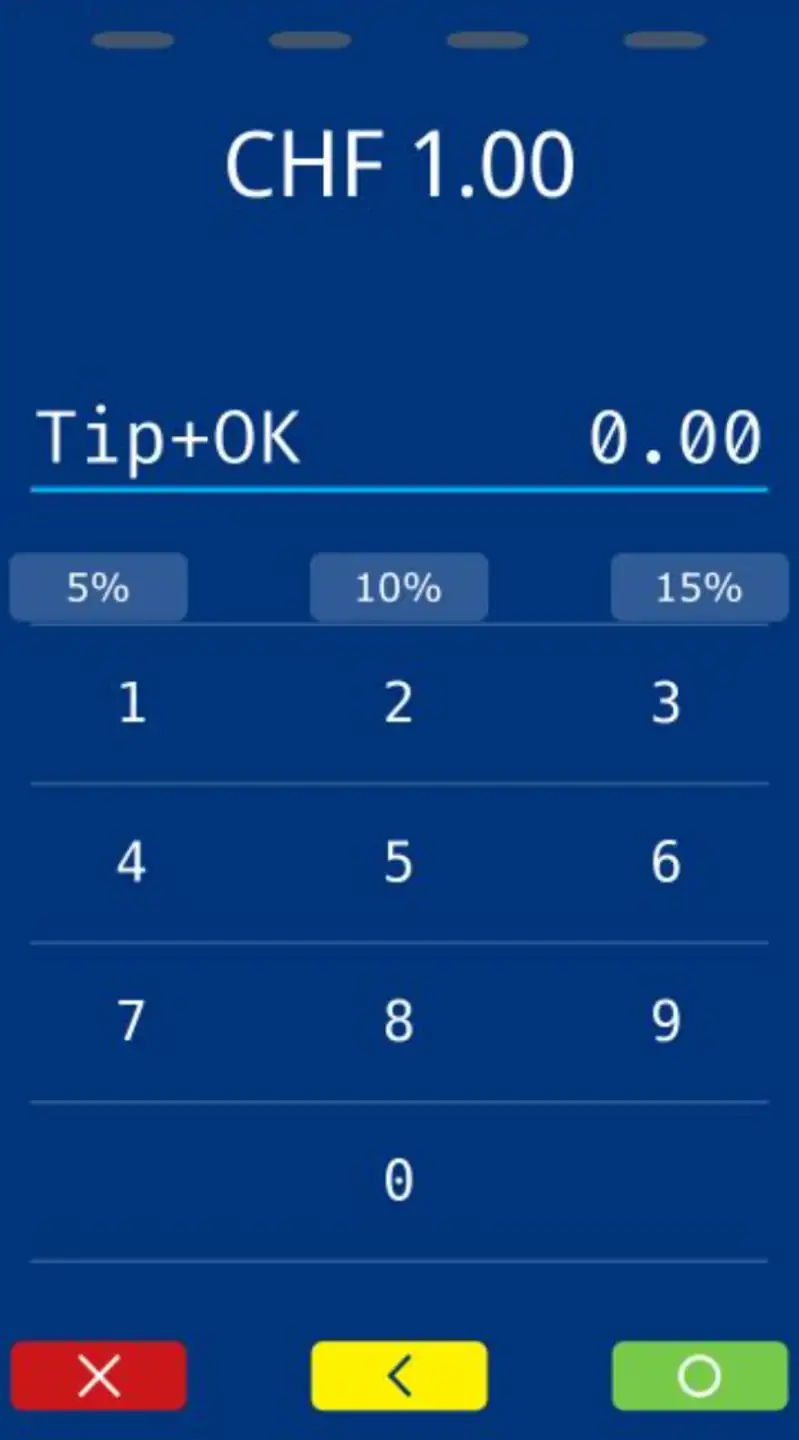
Le flux de pourboire n’apparaît que s’il a été activé pour le commerçant.
Finaliser un paiement
Une fois le montant confirmé, le terminal demande au client de finaliser le paiement.

Selon les méthodes de paiement activées, le client peut :
- présenter une carte Contactless ou un wallet
- insérer une carte à puce
- faire glisser une carte à bande magnétique
- utiliser une méthode de paiement basée sur QR
Acceptation des cartes et des wallets
Le A77 prend en charge les méthodes de paiement standard en présence de carte utilisées en Suisse.
Cela peut inclure :
- des cartes Contactless
- des cartes à puce
- un fallback de bande magnétique, le cas échéant
- des wallets mobiles tels que Apple Pay ou Google Pay
Paiements basés sur QR
Si les méthodes de paiement basées sur QR sont activées, l’écran de paiement peut également afficher un code QR.
Par défaut, la méthode de paiement standard basée sur QR est affichée. Si des méthodes de paiement alternatives basées sur QR sont actives sur le terminal, le commerçant peut modifier la méthode affichée directement depuis l’écran de paiement.
Pour passer de la méthode QR standard à une méthode alternative, appuyez sur le bouton vert avec les trois points sur l’écran de paiement.
Saisie manuelle de carte
La saisie manuelle de carte peut être disponible dans certaines configurations. Ce n’est pas le fallback normal pour les paiements par carte standard.
Pour l’acceptation normale des cartes, l’ordre attendu est :
- Contactless
- Chip and PIN
- fallback de bande magnétique, le cas échéant
Si la saisie manuelle est activée, elle devient disponible sur l’écran de paiement après le démarrage de la transaction. Le commerçant peut l’ouvrir en appuyant sur l’icône jaune sur l’écran de paiement et en sélectionnant la saisie manuelle du PAN.
Le terminal peut alors demander :
- le numéro de carte
- la date d’expiration
- code de sécurité de la carte
Cette fonction est généralement restreinte et concerne principalement des cas d’utilisation spéciaux tels que les flux liés aux cartes cadeaux ou au MPKE. Elle peut ne pas être disponible sur tous les terminaux.
Conversion dynamique de devise (DCC)
Si le DCC est activé et que le client utilise une carte étrangère éligible, le terminal peut proposer un choix de devise pendant le flux de paiement.
Le client voit :
- le montant dans la devise locale
- le montant converti dans la devise de la carte
- le taux de change et des informations supplémentaires
Le client peut alors choisir de payer dans la devise locale ou dans la devise de la carte.
Approbation ou refus
Une fois que le client a finalisé le paiement, le terminal envoie la demande d’autorisation via le réseau de paiement.
La transaction est ensuite approuvée ou refusée.
- Si elle est approuvée, la transaction est stockée pour une submission et un settlement ultérieurs
- Si elle est refusée, le client en est informé et le paiement peut être réessayé
Reçus
Après un paiement réussi, le terminal fournit le flux de reçu.
Le A77 ne dispose pas d’imprimante intégrée. Les reçus sont fournis numériquement sur le terminal, ou via la gestion des reçus côté caisse si une imprimante externe est disponible.
Les reçus suivants peuvent être disponibles :
- reçu commerçant
- reçu client
Si aucune option de reçu client n’est sélectionnée, le terminal poursuit avec le flux de reçu numérique configuré. Aucun reçu papier n’est imprimé directement par le A77.
Les deux reçus contiennent les principales informations de transaction, telles que la date et l’heure, le numéro de carte masqué, la référence de transaction, le code d’autorisation et le montant total.
Le reçu commerçant contient généralement davantage d’informations opérationnelles pour le support et le rapprochement. Le reçu client est la copie plus courte du titulaire de la carte.
Reçu QR
Sur les terminaux qui prennent en charge le reçu QR, le reçu client peut être affiché sous forme de code QR dans le flux de reçu numérique.
Le client peut scanner le code QR pour ouvrir le reçu numérique.
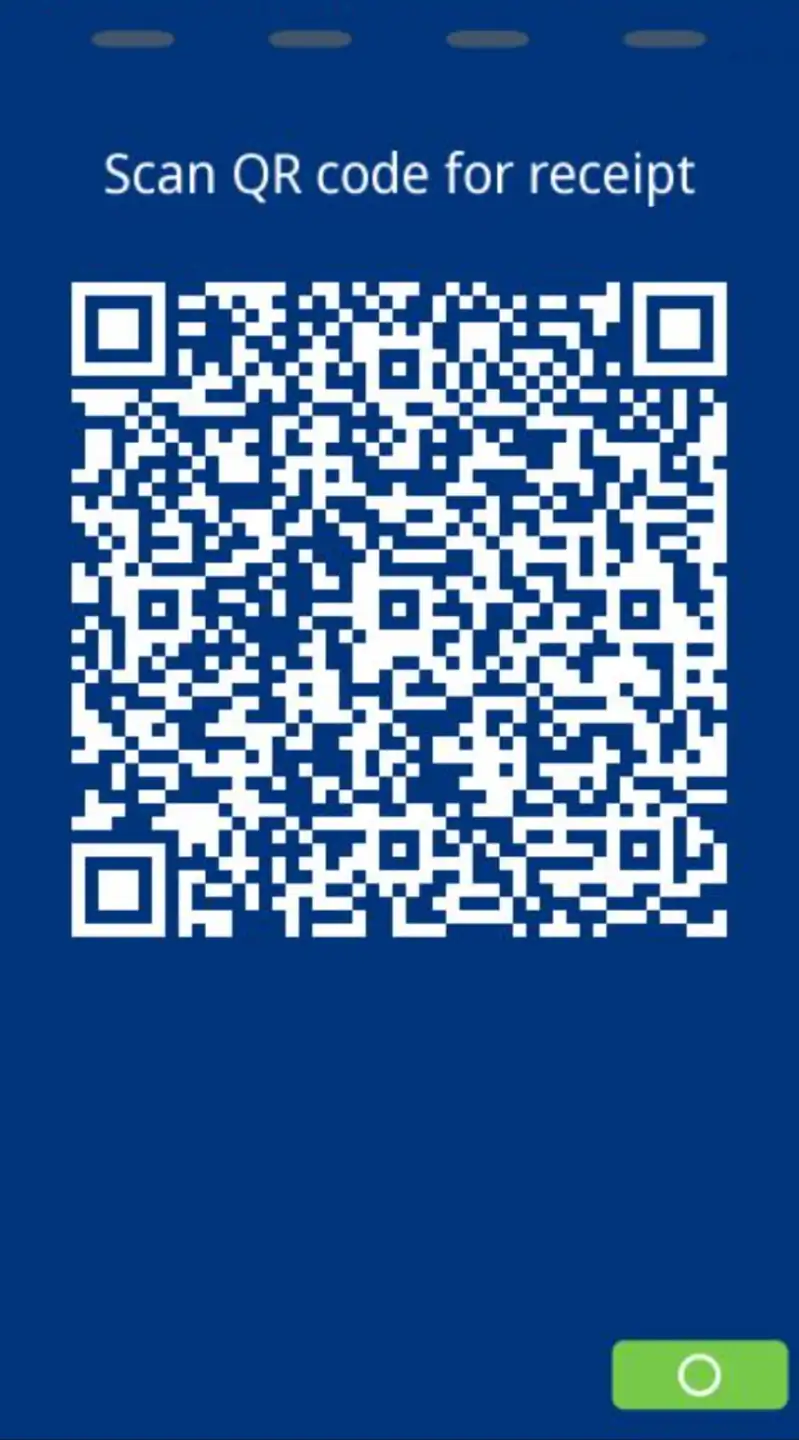
Cette option n’est affichée que sur les terminaux et configurations qui prennent en charge le reçu QR.
Menu et actions avancées
Le A77 propose deux points d’entrée de menu pour l’utilisation quotidienne et les actions avancées.

Menu des transactions
Le menu des transactions s’ouvre via l’icône étoile en bas à gauche de l’écran du terminal.
Ce menu donne un accès rapide aux actions courantes liées aux transactions, telles que reversal, credit, prepaid, final balance, ticket reprint et reports.
Menu commerçant
Le menu commerçant complet s’ouvre via l’icône hamburger en bas à droite de l’écran du terminal.
Ce menu donne accès aux fonctions commerçant, aux options de configuration et aux actions opérationnelles.

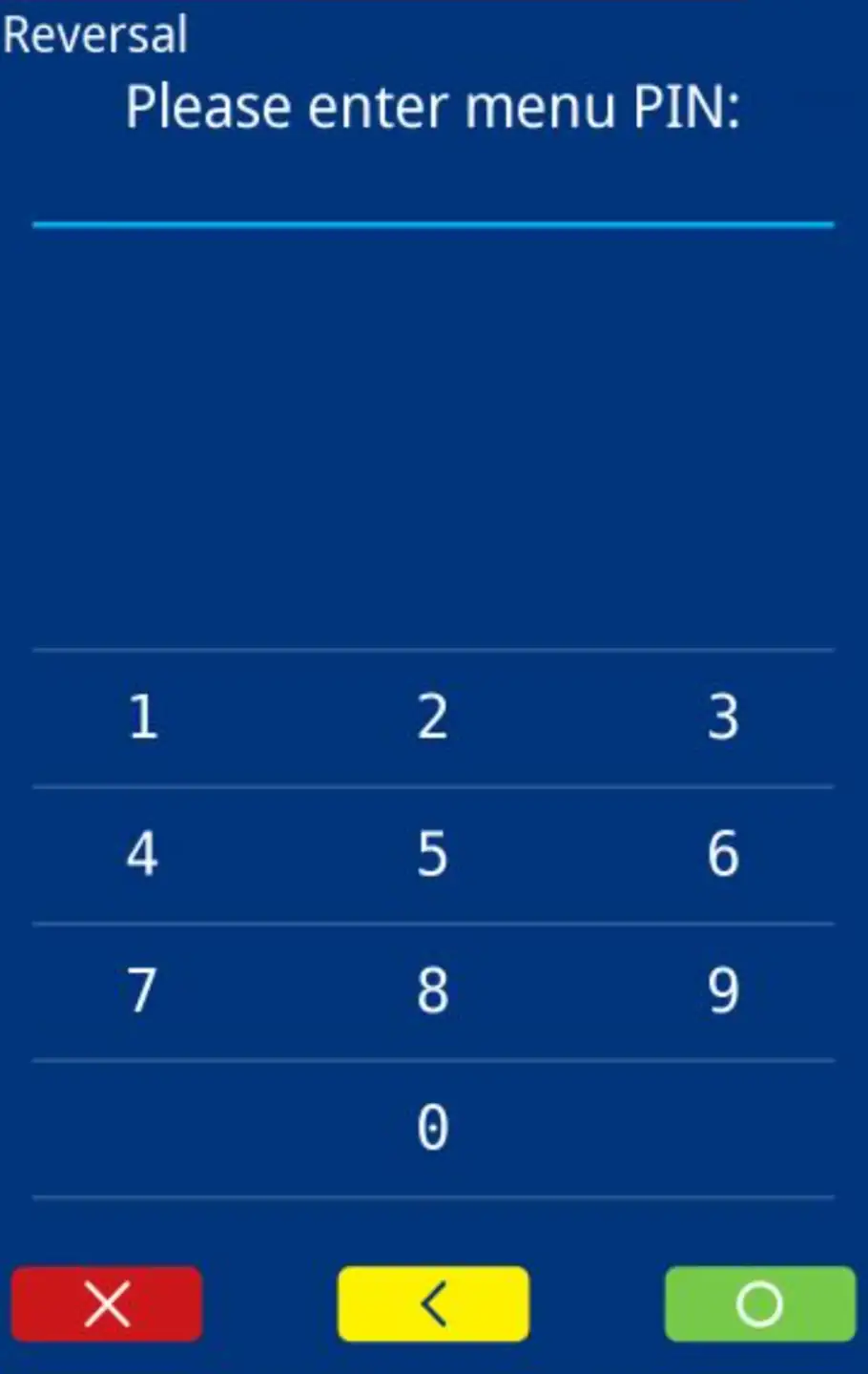
Les paramètres commerçant exigent toujours le mot de passe commerçant. Certains flux de transaction peuvent également nécessiter une authentification avant de pouvoir être exécutés. Si vous ne connaissez pas le mot de passe, contactez la personne responsable des terminaux dans votre entreprise.
Les paramètres du terminal et les paramètres opérationnels sont accessibles depuis le menu commerçant ou le menu de configuration. Veuillez procéder avec prudence.
Actions après paiement
En plus des paiements, le A77 prend en charge plusieurs actions après une transaction.
Réservation
Si les paiements avec réservation sont activés pour le commerçant, ouvrez la fonction de réservation depuis le menu des transactions pour réserver un montant sur la carte du titulaire. Le libellé exact du menu peut dépendre de la langue et de la configuration du terminal.
Le montant réservé peut ensuite être augmenté au moyen d’un ajustement, annulé ou finalisé avec une vente de réservation. Pour les périodes de validité, les ajustements et le comportement de la capture finale, voir Réservation.
Remboursement
Pour effectuer un remboursement :
- Ouvrez la fonction de remboursement ou de crédit
- Authentifiez-vous si nécessaire
- Saisissez le montant du remboursement
- Présentez la méthode de paiement si nécessaire
- Confirmez la transaction
Selon la configuration, la carte d’origine ou une autre étape de validation peut être requise.
Annulation
Pour effectuer un reversal de la dernière transaction :
- Ouvrez la fonction reversal depuis le menu des transactions
- Authentifiez-vous si nécessaire
- Confirmez la transaction affichée
Un reversal n’est possible que si la transaction n’a pas encore été soumise. Actuellement, seule la dernière transaction peut être reversed.
Clôture quotidienne
La clôture journalière clôture la période en cours, effectue la Submission et la Transmission si nécessaire, et prépare les transactions pour le Settlement.
Pour effectuer la clôture quotidienne :
- Ouvrez la fonction Final Balance depuis le menu des transactions
- Authentifiez-vous si nécessaire
- Confirmez l’action
Le terminal fournit un résumé final du solde une fois l’opération terminée.
Ce résumé est principalement utilisé pour le rapprochement et affiche les opérations effectuées pendant le cycle de clôture en cours.
Le terminal peut ne pas être disponible pendant ce processus.
Submission et transmission
Les transactions doivent être submitted et transmitted avant de pouvoir passer au Settlement et au payout.
Selon la configuration, cela peut se produire :
- automatiquement
- pendant la clôture quotidienne
- manuellement via le menu du terminal
Rouvrir le dernier reçu
Le A77 peut rouvrir à nouveau le dernier reçu de transaction sous forme de reçu numérique.
Pour ouvrir le dernier reçu :
- Ouvrez la fonction Ticket Reprint depuis le menu des transactions
- Confirmez l’action
Seul le dernier reçu client peut être rouvert. Si la configuration de paiement inclut l’impression externe des reçus, le reçu peut être imprimé en dehors du terminal.