User Guide
This guide explains how to use the DX8000 in daily operations. It covers the most common actions performed directly on the terminal, including payments, tips, receipts, refunds, reversals, submission, and daily closing.
Quick Links
Starting a Payment

To start a payment, select the payment function from the terminal home screen or from the menu.
Enter the transaction amount and confirm it on the device.
Tips
If tipping is enabled, the customer may be asked to add a tip before completing the payment.
Depending on the setup, the terminal may offer:
- manual tip entry
- predefined percentage options, shown together with manual amount and no-tip choices

The tip flow only appears if it has been enabled for the merchant.
Completing a Payment
Once the amount has been confirmed, the terminal asks the customer to complete the payment.

Depending on the enabled payment methods, the customer may be able to:
- tap a contactless card or wallet
- insert a chip card
- swipe a magnetic stripe card
- use a QR-based payment method
Card and Wallet Acceptance
The DX8000 supports the standard card-present payment methods used in Switzerland.
This may include:
- contactless cards
- chip cards
- magnetic stripe fallback, where applicable
- mobile wallets such as Apple Pay or Google Pay
QR-Based Payments
If QR-based payment methods are enabled, the payment screen may also show a QR code.
By default, the TWINT QR code is displayed. If WeChat Pay or Alipay is active on the terminal, the merchant can choose which QR code to display from the payment screen.
Manual Card Entry
Manual card entry may be available in specific configurations. It is not the normal fallback for standard card payments.
For regular card acceptance, the expected order is:
- contactless
- chip and PIN
- magnetic stripe fallback, where applicable
If manual entry is enabled, it becomes available on the payment screen after the transaction has started. The merchant can open it by pressing the plus button and selecting manual PAN key entry.
The terminal may then ask for:
- card number
- expiry date
- card security code
This function is usually restricted and mainly relevant for special use cases such as gift card or MPKE-related flows.
Dynamic Currency Conversion (DCC)
If DCC is enabled and the customer uses an eligible foreign card, the terminal may offer a currency choice during the payment flow.
The customer is shown:
- the amount in the local currency
- the converted amount in the card currency
- the exchange rate and additional information
The customer can then choose whether to pay in the local or card currency.
Approval or Decline
Once the customer completes the payment, the terminal sends the authorization request through the payment network.
The transaction is then approved or declined.
- If approved, the transaction is stored for later submission and settlement
- If declined, the customer is informed and the payment can be retried
Receipts
After a successful payment, the terminal provides the receipt flow.
The following receipts can be printed or displayed:
- merchant receipt
- customer receipt, also available as a digital receipt depending on the setup
If no customer receipt option is selected, the terminal automatically prints the customer receipt by default.
Both receipts contain the main transaction details, such as date and time, masked card number, transaction reference, authorization code, and total amount.
The merchant receipt usually contains more operational information for support and reconciliation. The customer receipt is the shorter cardholder copy.
In unattended mode, the DX8000 only prints a merchant receipt when a transaction was successful. If the transaction was not successful, no receipt is printed.
Menu and Advanced Actions
The hamburger icon in the top-left corner opens the side menu.
Some functions are grouped in expandable menu sections. For example, the transaction section contains additional transaction types and operational actions.

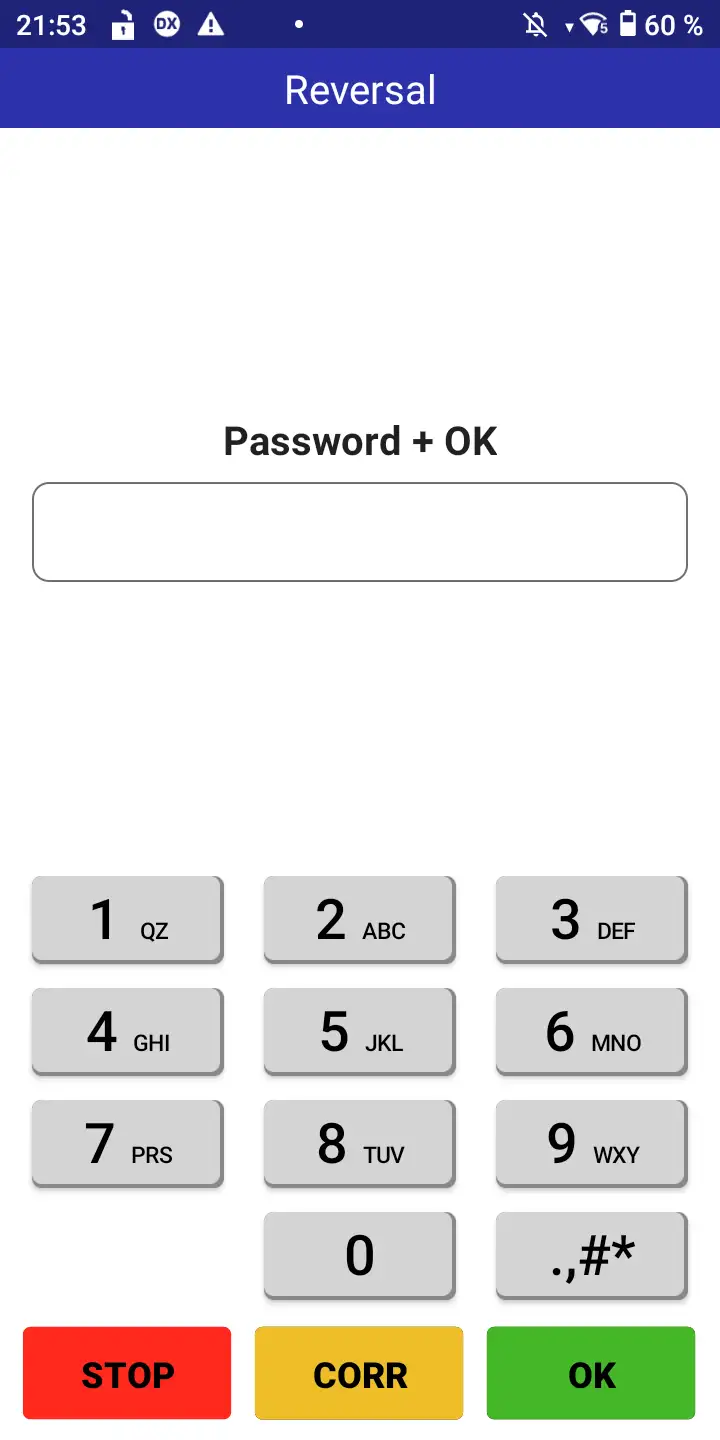
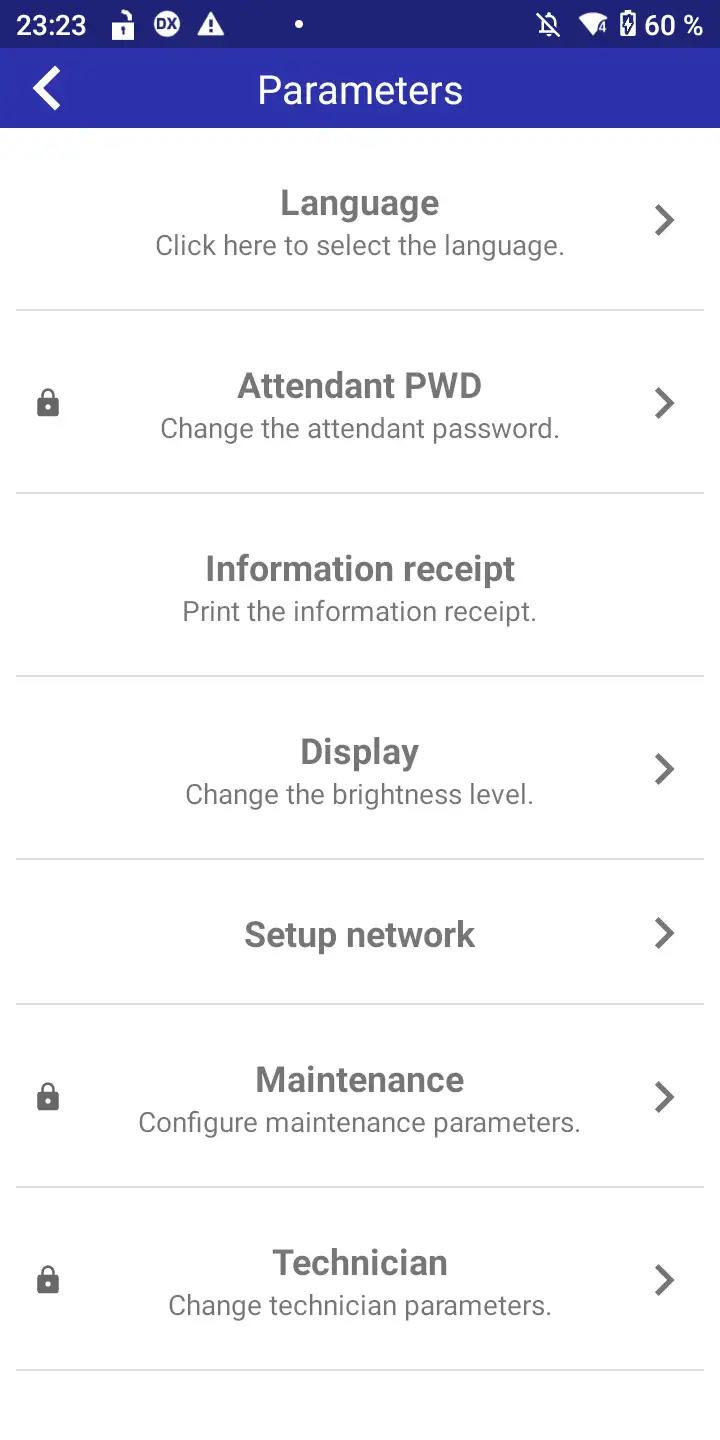
Merchant settings always require the merchant password. Some transaction flows may also require authentication before they can be executed. If you do not know the password, contact the person responsible for terminals at your company.
Terminal and operational settings can be accessed from the maintenance or technician menu. Please proceed with caution.
Actions After Payment
In addition to payments, the DX8000 supports several actions after a transaction.
Reservation
If reservation-based payments are enabled for the merchant, select Reservation from the transaction menu to reserve an amount on the cardholder's card.
The reserved amount can later be increased with an adjustment, cancelled, or finalized with a sale reservation. For validity periods, adjustments, and final capture behavior, see Reservation.
Refund
To perform a refund:
- Open the refund function
- Authenticate if required
- Enter the refund amount
- Present the payment method if required
- Confirm the transaction
Depending on the setup, the original card or another validation step may be required.
Reversal
To reverse the last transaction:
- Open the reversal function
- Authenticate if required
- Confirm the displayed transaction
A reversal is only possible if the transaction has not yet been submitted. Currently, only the last transaction can be reversed.
Daily Closing
Daily closing finalizes the current period, performs submission and transmission where required, and prepares transactions for settlement.
To perform daily closing:
- Open the Daily Closing function
- Authenticate if required
- Confirm the action
The terminal prints a summary once completed.
This final balance summary is mainly used for reconciliation and shows the operations performed during the current closing cycle.
The terminal may not be available during this process.
Submission and Transmission
Transactions must be submitted and transmitted before they can proceed to settlement and payout.
Depending on the setup, this may happen:
- automatically
- during daily closing
- manually via the terminal menu
Reprinting Last Receipt
The DX8000 can reprint the last transaction receipt.
To reprint:
- Select “Print last transaction”
- Confirm the action
Only the last customer receipt can be reprinted.